Quick post this time. I posted an observation with currencies and workflows in solutions a while back, this baby just keeps on giving.
The problem was that when you import a solution with a workflow that contains a currency you have to change the currency name in the receiving environment to match the currency name in the "dev" environment. Now we moved the dev to a new server and did a backup/restore of the database in which I had changed the currency name to match the receiving environments even though it didn't work. To my surprise the import of the organization on the new server actually changed the name of the currency in the solution and now I don't have a mismatch. I bit confusing but very nice.
Rickard Norström
Developer at CRM-Konsulterna
www.crmkonsulterna.se
onsdag 11 september 2013

måndag 26 augusti 2013
Javascript and console
To write info to the console when you are working with javascript is a nice way to avoid a ton of alerts, however this way of keeping track of things have a slight downside
This downside is that in some browsers the console isn't available. In this case I discovered the problem with IE9. I had a javscript which was using console.info("Some interesting info") to keep track of things that was happening in a function. The "funny" thing was that in the production environment I was accessing the CRM from my own machine running IE10 or Firefox 22 which wasn't giving me any problems, everything was working peachy. However, in my development environment I was using IE9 and in that case you need to have the developer tools open (press F12) otherwise there is no console available and the javascript crashes, silently.
The easy solution is to have an if-clause saying "if (window.console) console.info..." that checks if there's an available console to put stuff in.
Rickard Norström
Developer at CRM-Konsulterna
www.crmkonsulterna.se
This downside is that in some browsers the console isn't available. In this case I discovered the problem with IE9. I had a javscript which was using console.info("Some interesting info") to keep track of things that was happening in a function. The "funny" thing was that in the production environment I was accessing the CRM from my own machine running IE10 or Firefox 22 which wasn't giving me any problems, everything was working peachy. However, in my development environment I was using IE9 and in that case you need to have the developer tools open (press F12) otherwise there is no console available and the javascript crashes, silently.
The easy solution is to have an if-clause saying "if (window.console) console.info..." that checks if there's an available console to put stuff in.
Rickard Norström
Developer at CRM-Konsulterna
www.crmkonsulterna.se
onsdag 19 juni 2013
Workflow won't import properly due to currency error
This problem has bugged me, litterarly, for some time now. When I moved a solution from dev to test I got a lot of errors on Workflows due to error in the currency. It was not a great problem in most cases since I just changed to an existing currency. The big issue occurred when I had an email template in the Workflow.
The problem was the following: The name of the base currency, which was the one used, was SEK. In dev the display name was "Svensk krona" and in test the display name was "Swedish krona". When the workflow was imported, CRM couldn't match these. At first I thought it was a guid mismatch as it is with teams used in workflows and it was pretty straight forward to just change the currency in the Workflow. However, when you use an email template to send email, there is no currency field to change and the currency is still set somewhere.
I found a solution to my problem at Dynamics CRM Funda blog. The solution is to rename the currency display name on the receiving system to match the source system before you move the solution, afterwards you just change it back.
A bit akward I think but it works. A nicer solution would be to use the currency code as match instead of the display name, but again just change according to the reality.
Rickard Norström
Developer at CRM-Konsulterna
www.crmkonsulterna.se
The problem was the following: The name of the base currency, which was the one used, was SEK. In dev the display name was "Svensk krona" and in test the display name was "Swedish krona". When the workflow was imported, CRM couldn't match these. At first I thought it was a guid mismatch as it is with teams used in workflows and it was pretty straight forward to just change the currency in the Workflow. However, when you use an email template to send email, there is no currency field to change and the currency is still set somewhere.
I found a solution to my problem at Dynamics CRM Funda blog. The solution is to rename the currency display name on the receiving system to match the source system before you move the solution, afterwards you just change it back.
A bit akward I think but it works. A nicer solution would be to use the currency code as match instead of the display name, but again just change according to the reality.
Rickard Norström
Developer at CRM-Konsulterna
www.crmkonsulterna.se
tisdag 30 april 2013
Email router configuration
The Microsoft Dynamics CRM 2011 Email router is almost an endless source of joy. One of these is to make it work. I wrote this for my own reference since it might be some time between the occations I have to setup an email router.
The first thing you do is to launch the Email router configuration manager and what greets you is the profile tab. In this tab you set up incoming and outgoing profiles for your deployment(s). There needs to be at least one incoming and one outgoing profile, but in most occations there will be more of these.
To create a profile click the "new" button on the right. Here you have a couple of choices, the first one being to give your profile a name. In this example it will be "incoming" and the profile will be for incoming mail.

Here I have chosen a POP3 email server which gives us a couple of choices to make. One is Authentication type which can be NTML or clear text, I have chosen the latter here. With clear text it's recommended that you use SSL.
Then you just enter the server address and which credentials you want to use, in the case of POP3 you can choose "other specified" and "user specified". In this screen shot the other specified is marked and as you can see the user name i determined by the email address and that the password window is empty. This means that the user or queue you will associate this profile with will have the email address for user name and a password stored in the Email router. This means also that all users and queues using this profile will have to have the same password, which is NOT recommended and thus you need a profile for each user/queue and you need to update that profile each time the user or queue change the password. That is not good in a couple of ways, one being that you will need the password of the user and that's not best practice in any way.
 If you choose another email server type, for example Exchange 2010, you get another set of options. For Exchange Server 2010 the only way to access the server is using the web services which have a URL. This is entered in the location window and looks something like "http://mail.server.com/EWS/Exchange.asmx". In the screen shot I have just changed from POP3 to Exchange 2010.
For cretentials you have the same choices as in the POP3 case, but you can also chose "Local system account". The "other specified" looks a bit different from the POP3 case too. Here you can enter an admin account which has access to the email boxes that you want to use the router for. The same goes for the Local system account. I haven't used any of these in a live system and have been told, rather harshly, by an exchange expert that you don't want to do that. The third choice is user specified. This means that the user enters credentials into the CRM and those are used to access the email box, seems like the best way to handle this if you're using Exchange.
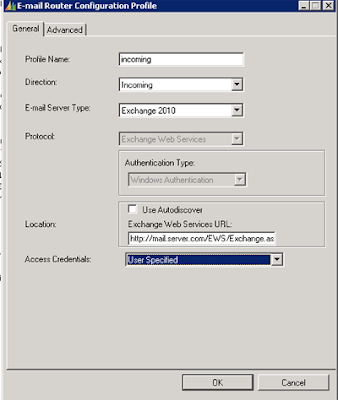 The result looks something like the image to the left. Another thing to think about if you're using Exchange 2007 is that the Webdav protocol doesn't seem to like some characters. We've had the entire router service shut down when an email entered the inbox with a subject containing a character that the email router did not appreciate.
Now, the next thing we do have a look at is the Advanced tab.
 Here we can change the ports we are using to connect to the server, this is definitely needed when changing the protocol to SSL.
Now that we've done our incoming rule we need an outgoing rule. Again there are a couple of choices needed, the first being the name, next we choose outgoing for direction and in the second drop down we can choose either exchange online or SMTP. For this example SMTP is our choice.
 Then we have the authentication type. The choices being Windows Authentication, clear text and Anonymous. To be able to use credential type "Local system account" you need to use Windows authentication. Again, if you use clear text be sure to use SSL. After you choose authentication type, you need to enter the url to the SMTP server and finaly choose Access credentials.
In the next screen shot I have made my choices, in this case Clear text which only give me the choice of other specified for credentials. As you can see I've entered a username and a password in the credentials input fields. If I would have chosen anonymous, those fields wouldn't be available.
 Again, the Exchange expert I was talking to recommended that you did not use anonymous access to the smtp server. Further she didn't like the idea of one user being able to send emails in the name of everybody in an organization. With this info on hand, the outgoing profile is more or less useless for everyone except queues, and even in that case it's quite a lot of job maintaing the system if you have a lot of queues. One thing I fins a bit curious is that you can't have the user specified credentials for outgoing email, that would have solved some problems at least.
If you need to change some port settings, the advanced tab looks roughly the same as the incoming rule advanced tab.
Now you are done with the profiles and you have a profile tab looking something like this.

Let's move on to the deployment tab. Here you set up wich CRM deployment you want to use. Again click on the "New" button on the right hand side and you get a new window with settings for the deployment.

Here you can choose to use an on-premise CRM, a partner hosted CRM or an on-line CRM. I chose on-premise (My Company) and entered the url for the crm, complete with port and organization name. Then I entered a user after chosing "Other specified" as credential type, the other choice is Local system account. Make sure to use a user with enough rights in the CRM, otherwise it might work in an unexpected way. The last two dropdowns specify if you want to use any profile as default, I chose not to do this.
After that is done we want to link our users and queues to profiles, that is done on the last tab
 Here I have already clicked "Load Data" after chosing my deployment from the dropdown. All email router enabled users and queues from the organization are shown and you simply open them and add an incoming and/or outgoing profile to them. After that is done you press the "Test Access" button to se if there are any obvious errors done.

As you can see all data is entered correctly and the test went ok.
Now, this doesn't mean that it will work, this means there are no errors in the setup. And this ends this quick demo of how you set up a email router for CRM 2011, and CRM 4.0 since they differ very little if they do at all.
Hope this helps!
Rickard Norström
Developer at CRM-Konsulterna
www.crmkonsulterna.se
The first thing you do is to launch the Email router configuration manager and what greets you is the profile tab. In this tab you set up incoming and outgoing profiles for your deployment(s). There needs to be at least one incoming and one outgoing profile, but in most occations there will be more of these.
To create a profile click the "new" button on the right. Here you have a couple of choices, the first one being to give your profile a name. In this example it will be "incoming" and the profile will be for incoming mail.

Here I have chosen a POP3 email server which gives us a couple of choices to make. One is Authentication type which can be NTML or clear text, I have chosen the latter here. With clear text it's recommended that you use SSL.
Then you just enter the server address and which credentials you want to use, in the case of POP3 you can choose "other specified" and "user specified". In this screen shot the other specified is marked and as you can see the user name i determined by the email address and that the password window is empty. This means that the user or queue you will associate this profile with will have the email address for user name and a password stored in the Email router. This means also that all users and queues using this profile will have to have the same password, which is NOT recommended and thus you need a profile for each user/queue and you need to update that profile each time the user or queue change the password. That is not good in a couple of ways, one being that you will need the password of the user and that's not best practice in any way.

For cretentials you have the same choices as in the POP3 case, but you can also chose "Local system account". The "other specified" looks a bit different from the POP3 case too. Here you can enter an admin account which has access to the email boxes that you want to use the router for. The same goes for the Local system account. I haven't used any of these in a live system and have been told, rather harshly, by an exchange expert that you don't want to do that. The third choice is user specified. This means that the user enters credentials into the CRM and those are used to access the email box, seems like the best way to handle this if you're using Exchange.
 The result looks something like the image to the left. Another thing to think about if you're using Exchange 2007 is that the Webdav protocol doesn't seem to like some characters. We've had the entire router service shut down when an email entered the inbox with a subject containing a character that the email router did not appreciate.
Now, the next thing we do have a look at is the Advanced tab.

Now that we've done our incoming rule we need an outgoing rule. Again there are a couple of choices needed, the first being the name, next we choose outgoing for direction and in the second drop down we can choose either exchange online or SMTP. For this example SMTP is our choice.

In the next screen shot I have made my choices, in this case Clear text which only give me the choice of other specified for credentials. As you can see I've entered a username and a password in the credentials input fields. If I would have chosen anonymous, those fields wouldn't be available.

If you need to change some port settings, the advanced tab looks roughly the same as the incoming rule advanced tab.
Now you are done with the profiles and you have a profile tab looking something like this.

Let's move on to the deployment tab. Here you set up wich CRM deployment you want to use. Again click on the "New" button on the right hand side and you get a new window with settings for the deployment.

Here you can choose to use an on-premise CRM, a partner hosted CRM or an on-line CRM. I chose on-premise (My Company) and entered the url for the crm, complete with port and organization name. Then I entered a user after chosing "Other specified" as credential type, the other choice is Local system account. Make sure to use a user with enough rights in the CRM, otherwise it might work in an unexpected way. The last two dropdowns specify if you want to use any profile as default, I chose not to do this.
After that is done we want to link our users and queues to profiles, that is done on the last tab


As you can see all data is entered correctly and the test went ok.
Now, this doesn't mean that it will work, this means there are no errors in the setup. And this ends this quick demo of how you set up a email router for CRM 2011, and CRM 4.0 since they differ very little if they do at all.
Hope this helps!
Rickard Norström
Developer at CRM-Konsulterna
www.crmkonsulterna.se
torsdag 11 april 2013
The CRM Email router routing emails into unexpected queues.
I've been working with the email router a couple of times the past few weeks and each time is a new bag of funny stuff. This jewel just keeps on giving.
The latest bit of interesting behaviour I found was that when an email is sent to two or more different queues it actually gets queued in all of them. This was a certain blog topic in my little head, but just to be sure about it I did a bit of resarch and found this blog which proved me wrong in my thought that an object only could be present in one queue at a time.
However, there was another thing that caught my interest and that was that a queue that isn't active on the email router can get email into it.
 The queue support3 is set up like this in CRM and has no rule on the email router since it's just an alias.

This was a bit curious since I hadn't got an incoming rule set up for the queue. This is not that exact email but I reproduced the behaviour. What happened on the customer's system was that they were re organizing their incoming email and had a bit messy system for it so they forwarded the email from one address to another mailbox and we were polling that mailbox. Now, I tried to set up a queue using the email address that was being forwarded on the emailbox that had another username. This was not so popular with the email router setup so I reverted to the email address that matched the username. In this example it is support2. When I enabled that incoming rule on the email router, emails started coming into the queue of the forwarded email address.
What happened was that the email router polled the incoming box of support2, finding the email addressed to support3, looked the queues and found a match in support3 and delivered the email to support3.
Needless to say, I was a bit confused. I told the customer what just happened and he looked at me asking does the email enter the system and end up in the correct queue? Well, sort of, not the queue we planned it to enter, but the old queue. Fair enough, let it be, it's working.
I don't know if this is the way it's supposed to work but it could be a shortcut getting email into the system using one email box and a heap of aliases. Sort of the forward email box but without having to put the original email into an attachment.
Rickard Norström
Developer at CRM-Konsulterna
www.crmkonsulterna.se
The latest bit of interesting behaviour I found was that when an email is sent to two or more different queues it actually gets queued in all of them. This was a certain blog topic in my little head, but just to be sure about it I did a bit of resarch and found this blog which proved me wrong in my thought that an object only could be present in one queue at a time.
However, there was another thing that caught my interest and that was that a queue that isn't active on the email router can get email into it.


This was a bit curious since I hadn't got an incoming rule set up for the queue. This is not that exact email but I reproduced the behaviour. What happened on the customer's system was that they were re organizing their incoming email and had a bit messy system for it so they forwarded the email from one address to another mailbox and we were polling that mailbox. Now, I tried to set up a queue using the email address that was being forwarded on the emailbox that had another username. This was not so popular with the email router setup so I reverted to the email address that matched the username. In this example it is support2. When I enabled that incoming rule on the email router, emails started coming into the queue of the forwarded email address.
What happened was that the email router polled the incoming box of support2, finding the email addressed to support3, looked the queues and found a match in support3 and delivered the email to support3.
Needless to say, I was a bit confused. I told the customer what just happened and he looked at me asking does the email enter the system and end up in the correct queue? Well, sort of, not the queue we planned it to enter, but the old queue. Fair enough, let it be, it's working.
I don't know if this is the way it's supposed to work but it could be a shortcut getting email into the system using one email box and a heap of aliases. Sort of the forward email box but without having to put the original email into an attachment.
Rickard Norström
Developer at CRM-Konsulterna
www.crmkonsulterna.se
söndag 24 februari 2013
Powershell on ifd server
Configuring Internet Facing Deployment is no easy task by itself and when you're done, well the CRM is up and running at least, it's easy to miss some of the settings that's needed.
This might not be the case for everyone doing this but it certainly was to me. I had been struggling with the ADFS and IFD for some time that it started to be something of a blurr what I had been changing and what was untouched. Anyway, the CRM was up, the IFD was working, everyone's happy.
What happened next was that the disk was getting full on the server and I noticed I had forgotten to turn off the trace. Since this can be done either by the registry or by changing the database with powershell I started by looking at the registry and no keys were set there, moving along to the database using powershell.
The good-ole' "Add-PsSnapin Microsoft.Crm.Powershell" gave me no headaches, that was about to change though. When I entered "Get-CrmSetting TraceSettings" the following message returned:

This is what the Web Address settings looked like and the IFD was pointing at adfs.domain.com. The solution to my problem was just to change the web address to that of the IFD and bingo, powershell was happy again. To turn off the tracing of the CRM server is a different story, that part lives it's own life.
Rickard Norström
Developer at CRM-Konsulterna
www.crmkonsulterna.se
This might not be the case for everyone doing this but it certainly was to me. I had been struggling with the ADFS and IFD for some time that it started to be something of a blurr what I had been changing and what was untouched. Anyway, the CRM was up, the IFD was working, everyone's happy.
What happened next was that the disk was getting full on the server and I noticed I had forgotten to turn off the trace. Since this can be done either by the registry or by changing the database with powershell I started by looking at the registry and no keys were set there, moving along to the database using powershell.
The good-ole' "Add-PsSnapin Microsoft.Crm.Powershell" gave me no headaches, that was about to change though. When I entered "Get-CrmSetting TraceSettings" the following message returned:
Get-CrmSetting : The underlying connection was closed: Could not establish trust relationship for the SSL/TLS secure channel.This made me a bit confused since everything else was working fine. A bit of searching lead me to looking at the Deployment manager and what was set there.
At line:1 char:15
+ Get-CrmSetting <<<< TraceSettings
+ CategoryInfo : NotSpecified: (:) [Get-CrmSetting], WebException
+ FullyQualifiedErrorId : System.Net.WebException,Microsoft.Crm.PowerShell.GetCrmSettingCmdlet

This is what the Web Address settings looked like and the IFD was pointing at adfs.domain.com. The solution to my problem was just to change the web address to that of the IFD and bingo, powershell was happy again. To turn off the tracing of the CRM server is a different story, that part lives it's own life.
Rickard Norström
Developer at CRM-Konsulterna
www.crmkonsulterna.se
torsdag 31 januari 2013
CRM has encountered a problem
I recently ran into the annoying pop up when I closed a window saying CRM has encountered a problem... asking if I wanted to send a message to Microsoft. When I looked at the info about to be sent, the error message was "The disk is full".
This made me a bit worried since I just cleared trace logs since june on that machine after a lot of testing and reconfiguration of the ADFS and IFD. The disk was far from full I realized after logging in to the server and taking a look, no problems in the database either.
I tried to find similar errors but there were no real answers for me which turned me to Microsoft's forum where I asked a question about this.
The obvious answer I got was "Have you turned on trace and looked at the logs?". That was of course one thing I hadn't done, even though I had a look at the trace directory, and an almost as obvious return question as "have you published your changes".
The trace gave me a clue about where to look since the culprit was the "refresh.png" in the Activity Feeds addon.
This clue gave me a bit more to go on and there were indeed quite a few having problems with activity feeds i general and the refresh.png in particular. One thing that was common was that the error message in the trace gave the path as ".../refresh.png" when the web resource name is ".../msdyn_/refresh.png". The second path was accessable with a browser and the first one wasn't. Still I have had Activity Feeds work on several installations so the addon itself can't be the entire problem.
On the website for Activity Feeds I saw few comments about Activity Feed not being available in this or that langage. That made me a bit curious since we had an English server installation with a Swedish MUI on top and the tennant I had problems with had Swedish as base language.
I opened the organization and enabled English, refreshed the Explorer and bingo, no problems anymore.
This raises a few questions. Why can Activity Feed translade a faulty URL when there is English provishoned? Why did the Swedish base language mess things up (I suppose) and why on earth is the error message sent to Microsoft "The disk is full".
The error messages in CRM is a story by itself so this is no "one hit wonder".
Rickard Norström
Developer at CRM-Konsulterna
www.crmkonsulterna.se
This made me a bit worried since I just cleared trace logs since june on that machine after a lot of testing and reconfiguration of the ADFS and IFD. The disk was far from full I realized after logging in to the server and taking a look, no problems in the database either.
I tried to find similar errors but there were no real answers for me which turned me to Microsoft's forum where I asked a question about this.
The obvious answer I got was "Have you turned on trace and looked at the logs?". That was of course one thing I hadn't done, even though I had a look at the trace directory, and an almost as obvious return question as "have you published your changes".
The trace gave me a clue about where to look since the culprit was the "refresh.png" in the Activity Feeds addon.
This clue gave me a bit more to go on and there were indeed quite a few having problems with activity feeds i general and the refresh.png in particular. One thing that was common was that the error message in the trace gave the path as ".../refresh.png" when the web resource name is ".../msdyn_/refresh.png". The second path was accessable with a browser and the first one wasn't. Still I have had Activity Feeds work on several installations so the addon itself can't be the entire problem.
On the website for Activity Feeds I saw few comments about Activity Feed not being available in this or that langage. That made me a bit curious since we had an English server installation with a Swedish MUI on top and the tennant I had problems with had Swedish as base language.
I opened the organization and enabled English, refreshed the Explorer and bingo, no problems anymore.
This raises a few questions. Why can Activity Feed translade a faulty URL when there is English provishoned? Why did the Swedish base language mess things up (I suppose) and why on earth is the error message sent to Microsoft "The disk is full".
The error messages in CRM is a story by itself so this is no "one hit wonder".
Rickard Norström
Developer at CRM-Konsulterna
www.crmkonsulterna.se
Prenumerera på:
Kommentarer (Atom)